
If you’ve been using ChatGPT to generate writing models for your class, you’ve probably noticed something frustrating. The prompt that worked brilliantly last Tuesday doesn’t quite work on Thursday. So you add a bit more detail. Then a bit more. Before long, you’ve got a paragraph of context to paste in before you can even ask for what you actually need.
There’s a more practical way to set this up, and it takes about five minutes.
What Is a ChatGPT Project?
A Project is a persistent workspace inside ChatGPT. Rather than starting from scratch each time you open a chat, a Project holds all the background information ChatGPT needs to know before you ask it anything: your year group, your curriculum, the kind of language you want, the level you’re pitching at.
Every conversation you start inside that Project automatically inherits that context. So instead of specifying “Year 6, UK, National Curriculum, British English, slightly above pupil level” every single time, ChatGPT already knows. You just ask for the thing you need.
Think of it less like a chat window and more like a staffroom folder that’s always pre-loaded with the right information.
Setting One Up for Writing Models
Here’s a walkthrough using Year 6 writing models as an example, though the same logic applies to any year group or subject.
Go to Projects in the left-hand sidebar and create a new one. Name it clearly so you know what it’s for:
Year 6 Writing: Models and Scaffolds
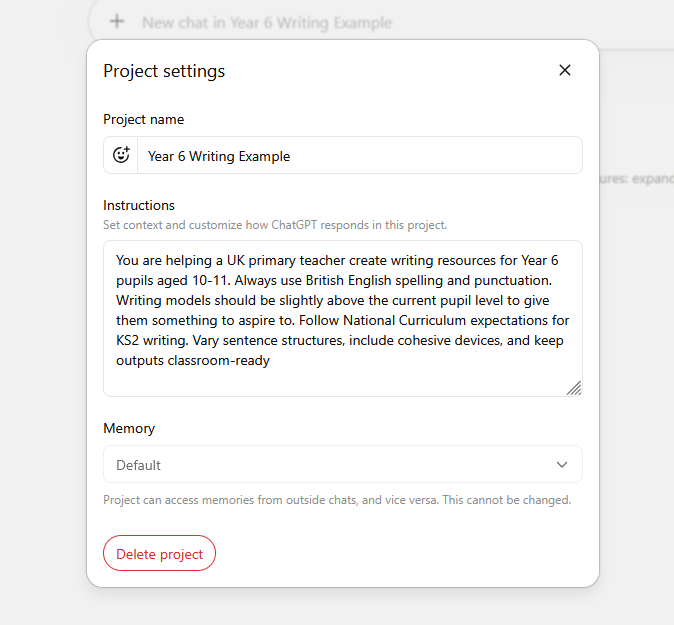
Then open the instructions panel. This is where you set the context once. You don’t need to write an essay; you just need enough detail that ChatGPT can make sensible decisions without you spelling everything out each time. Something along these lines works well:
"You are helping a UK primary teacher create writing resources for Year 6 pupils aged 10-11. Always use British English spelling and punctuation. Writing models should be slightly above the current pupil level to give them something to aspire to. Follow National Curriculum expectations for KS2 writing. Vary sentence structures, include cohesive devices, and keep outputs classroom-ready."That’s the core of it. Save those instructions, and they’ll apply to every conversation you open within this Project from that point on.
Using It Day to Day
Once your Project is set up, your individual prompts become much shorter. Instead of a paragraph of context, you can write something like:
Model paragraph. Genre: suspense. Setting: child alone in a forest. Features to include: short sentences, varied sentence starters, a relative clause.
What comes back is already calibrated to Year 6, already in British English, already pitched at the right level. You didn’t have to specify any of that because the Project is holding it in the background.
From there, it’s straightforward to build on what you’ve got. If you want a comparison piece for editing work, you can follow up immediately:
Now write a weaker version of this for comparison.
Now you have a model and a weaker version, both consistent with each other, both ready to use. That’s a complete part of a lesson in well under a minute.
Classroom Application
Three things you can do straight away:
1. Set up one Project this week. Pick a single focus, writing models for your current year group is a good starting point, and spend five minutes writing the instructions. Keep it simple: year group, curriculum, language expectations, level. You can refine it as you go.
2. Use it to generate paired texts. Ask for a strong model, then ask for a weaker version. This gives you a ready-made comparison for editing and improvement activities, without any additional effort.
3. Build a library of prompts inside the Project. As you generate resources, save the short prompts that worked well. Over time, you’ll build up a set of reliable starting points for different genres and text types, all already calibrated to your class.
A Note on Getting Started
If you haven’t used the Projects feature before, it’s available on the free version of ChatGPT as well as the paid tiers, though free accounts have some usage limits. The setup process is the same either way, and the benefits start from the very first conversation you run inside the Project.
The five minutes it takes to configure this once will save you considerably more over the course of a term. It’s one of those quiet, unglamorous things that actually makes a difference to how smoothly the tool fits into your planning routine.
Stop Rewriting the Same Prompt: How ChatGPT Projects Save You Time on Writing Resources
The Whiteboard Blog – Education, Technology, AI and Science CPD and Support